
TL;DR: For one work week I relied only on the free plans of ChatGPT, Gemini, Claude, Perplexity and Canva to handle writing, research, emails and visuals. Each tool had a clear strength: ChatGPT gave friendly, natural drafts, Gemini gave structured outlines, Claude wrote polished emails, Perplexity answered with visible sources, and Canva produced a clean illustration from a single prompt. Free plans show upgrade prompts and have limits, but for everyday content work they covered far more than I expected.
I create tech content, which means a constant mix of blog drafts, client emails, research and visuals. Every AI tool seems to push a paid plan, so I wanted to find out how far the free versions could really take me. The rule was simple: no Plus, no Pro, no paid add-ons. I gave each tool a real task from my normal workflow, took screenshots as I went, and noted where each one helped and where it fell short.
In this post I will walk through every test with the exact prompts I used, what each tool returned, and which free tool I would pick for which job.
📋 Table of Contents
- What Daily Tasks Did I Need AI to Handle?
- ChatGPT (Free): Blog Outline and Introduction
- Google Gemini: Same Prompt, More Structured Output
- ChatGPT vs Gemini: Side-by-Side Comparison
- Claude (Free): Writing a Professional Email
- Perplexity: Research With Visible Sources
- Canva (Free): AI Image Generation
- Free Plan Limits and Upgrade Prompts I Noticed
- Summary: Which Free Tool for Which Job
- What Worked Well (and What Didn’t)
- Can Free AI Tools Replace Paid Ones?
- Frequently Asked Questions
What Daily Tasks Did I Need AI to Handle?
Before starting, I wrote down the five types of work I depend on AI for most:
- Writing blogs and articles
- Doing research
- Writing emails
- Creating images or thumbnails
- Brainstorming ideas or outlines
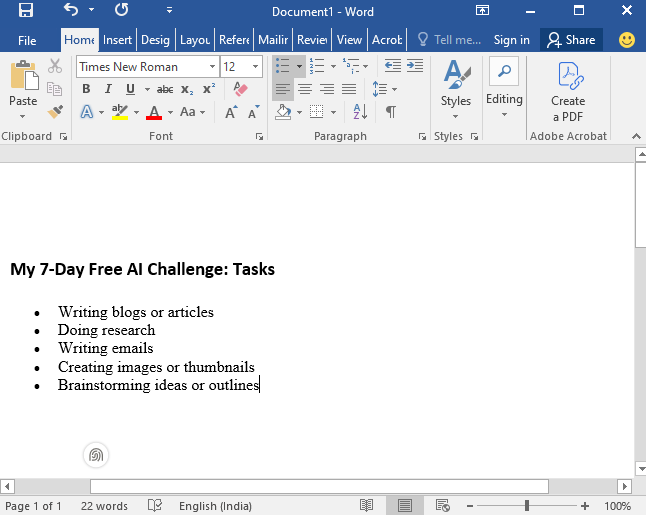
This list acted as my scorecard for the week. For every task, the question was the same: can a free AI tool do this well enough that I would not feel the need to pay?
ChatGPT (Free): Blog Outline and Introduction
My first test was a classic content task: a blog outline on “5 Ways to Save Battery on Android Phones.” I chose a simple topic on purpose, because it shows quickly whether a tool can deliver a usable structure without hand-holding.
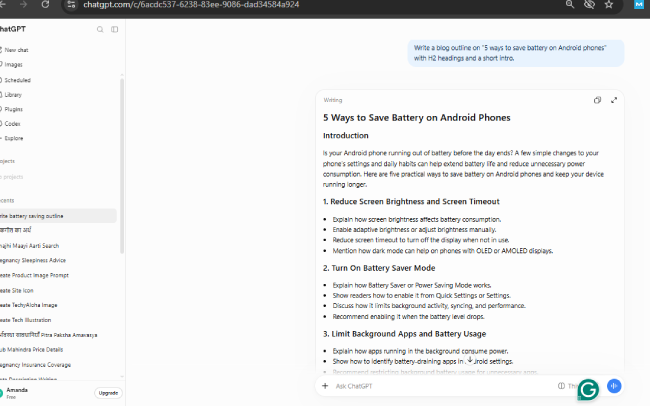
Prompt: Write a blog outline on “5 ways to save battery on Android phones” with H2 headings and a short intro.
ChatGPT responded with a well-organized outline. It started with a short introduction asking whether your Android phone runs out of battery before the day ends, then moved into numbered sections such as “Reduce Screen Brightness and Screen Timeout,” “Turn On Battery Saver Mode” and “Limit Background Apps and Battery Usage.” Under each heading it listed practical bullet points, for example explaining how brightness affects battery use, how to enable Battery Saver from Quick Settings, and how to spot battery-draining apps in settings.
I then asked a follow-up: write the full introduction in a friendly tone, under 120 words. The new version opened with a relatable line about phones running low on battery just when you need them, mentioned scrolling, watching videos and staying connected with friends, and ended by promising five easy ways to save battery. It read warm and conversational, and it kept things short.
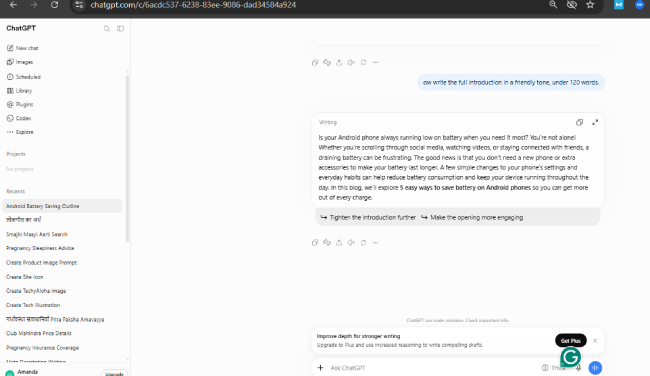
Two small details stood out. First, ChatGPT offered one-click follow-ups such as “Tighten the introduction further” and “Make the opening more engaging,” which made quick iteration easy. Second, the free plan showed an upgrade banner for Plus, promising increased reasoning for stronger writing. It did not block my work, but it is a clear sign of what the paid tier adds.
Google Gemini: Same Prompt, More Structured Output
To make the comparison fair, I gave Gemini the exact same prompt I used with ChatGPT.
The overall content was similar, but the format was noticeably different. Gemini labeled every heading explicitly, for example “H2: 1. Enable Dark Mode and Adjust Screen Brightness” and “H2: 2. Restrict Background App Refresh and Activity.” Under each heading it added a “Why it matters” line, such as the point that the display is often the single biggest consumer of battery power, followed by a “Key points to cover” list. The introduction explained how heavy usage, streaming and GPS navigation can drain a battery faster than expected.
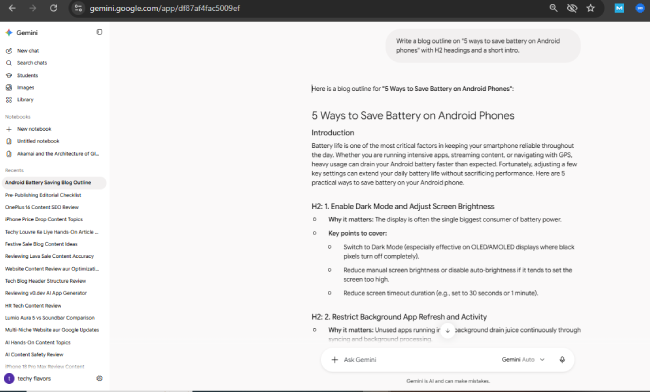
This structure feels like a ready-made content brief. If you copy outlines into a CMS or hand them to a writer, the explicit heading labels and key points save editing time.
ChatGPT vs Gemini: Side-by-Side Comparison
Running the identical prompt through both tools made their personalities easy to compare.
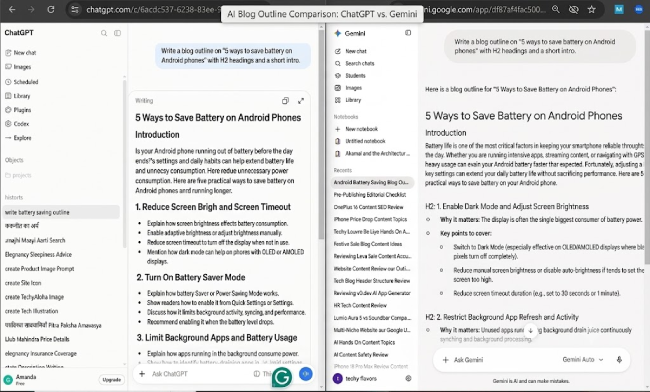
- ChatGPT (Free): Headings are formatted visually with bold, numbered titles and no literal “H2” labels. The tone feels natural, and follow-up edits are smooth.
- Gemini: Headings are labeled “H2:” and each section includes “Why it matters” and “Key points to cover.” It is more structured and easier to skim.
Neither tool was clearly better. When I wanted a quick, natural-sounding draft, I leaned on ChatGPT. When I needed a structured outline to build on or share, Gemini saved me time. Using both gave me two perspectives on the same topic, which made brainstorming faster.
Claude (Free): Writing a Professional Email
Next I moved to email, one of the most repetitive parts of my week. I used Claude’s free plan, which the interface labels clearly at the top of the chat.
Prompt: Write a professional email to a client asking for a project deadline extension of 3 days. Keep it polite and under 150 words.
Claude returned a complete email in a clean, copy-ready card with a subject line: “Request for 3-Day Extension on [Project Name].” The body opened with a friendly greeting, requested a three-day extension, left a bracketed spot for the reason, acknowledged the inconvenience, and closed politely with thanks. The card even included a Copy button and a Send via Gmail option.
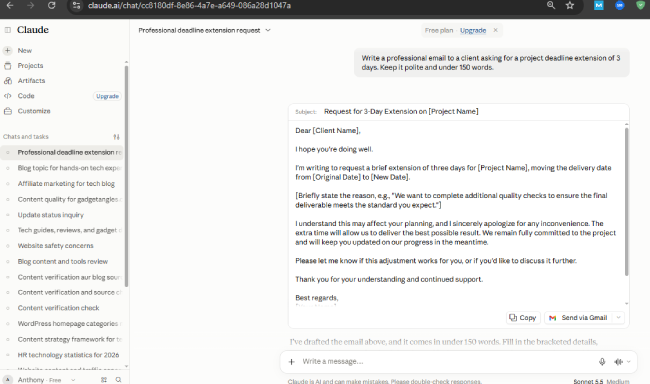
Claude also added a useful note: fill in the bracketed details, especially the reason for the delay, because a specific and honest reason tends to go over better with clients than a vague one. Keep in mind that the draft uses placeholders like [Client Name], [Project Name] and [Original Date], so you do need to personalize it before sending.
Then I tested how well it handles edits by replying, “Make it shorter and more direct.” The new version dropped the extra explanation and kept only the essentials: a clear request for a three-day extension, a placeholder for a one-line reason, a brief apology and a note of appreciation.
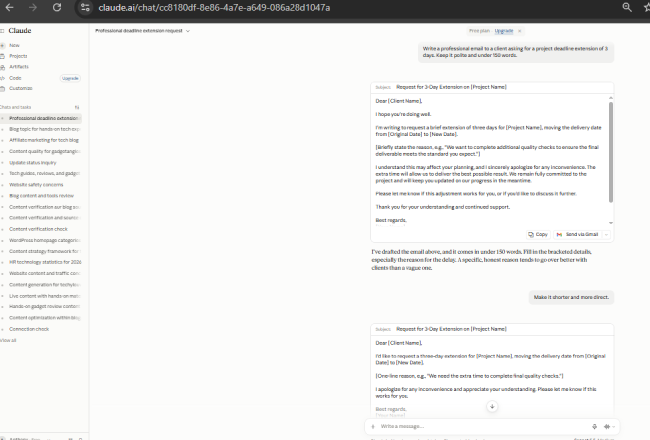
That quick back-and-forth, from a detailed draft to a tight one in seconds, was one of the quickest wins of the week.
Perplexity: Research With Visible Sources
For research I wanted answers I could actually verify, so I tested Perplexity.
Prompt: What are the best free AI tools in 2026 for students? Give sources.
Perplexity replied almost instantly, with a status line showing it had researched the question in about a second. It opened with a short summary naming the tools it recommended, then added a section called “Best tools by study task” with a table. The table matched tasks to tools, such as explaining difficult concepts, studying from your own notes and PDFs, research with sources, and writing and proofreading, with a short “why it helps” note for each. Small source labels appeared next to the points.
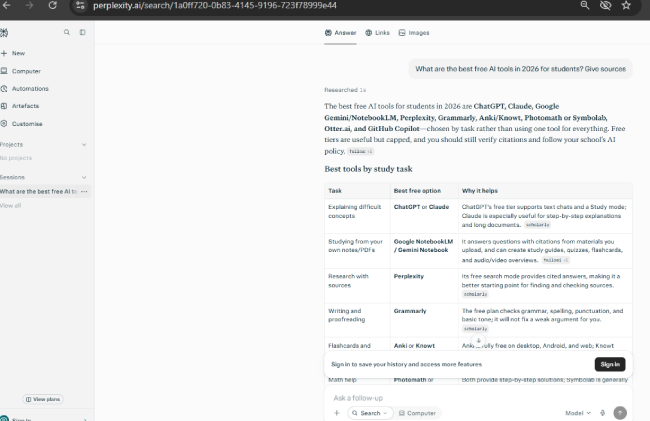
Two things impressed me. It worked without me signing in; the only prompt was a banner suggesting I sign in to save my history. And the answer itself included a sensible reminder that free tiers are capped and that you should verify citations. That is exactly the right mindset for any AI research: use it to get started fast, then check the sources before you publish anything.
Canva (Free): AI Image Generation
The last task was visuals, something every blogger needs for headers and thumbnails. I used Canva’s AI feature.
Prompt: A clean flat illustration of a person working on a laptop with AI icons around, blue and white colors.
The result showed up directly in the Canva AI chat thread, and it matched the prompt closely. It is a flat-style illustration of a smiling person working on a laptop, with a coffee mug and a small plant on the desk. Around them are AI-themed icons: two friendly robot faces, a network node diagram, circuit-style lines and a sparkle. The palette stays in blue and white, exactly as requested, and the style is clean and simple.
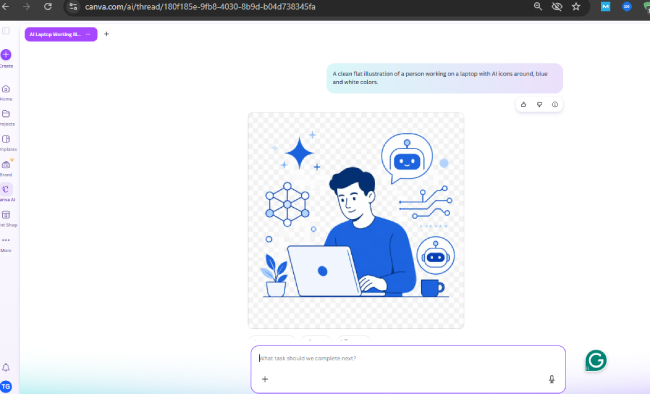
For a blog header or a social media post, this is a solid starting point. From here you can take it into Canva to add text, adjust the layout or resize it for different platforms.
Free Plan Limits and Upgrade Prompts I Noticed
Even when everything worked, the free plans reminded me of what sits behind a paywall:
- ChatGPT: The account is marked as Free with an Upgrade button in the sidebar, and a banner suggested upgrading to Plus for increased reasoning.
- Claude: A “Free plan” label with an Upgrade link sits at the top of the chat.
- Perplexity: A banner invited me to sign in to save my history and unlock more features.
- Gemini: The interface ran in Gemini Auto mode, and like the others it reminded me that AI can make mistakes.
None of these prompts stopped me from finishing my tasks, but they show where each company hopes you will upgrade. The reminder that AI can make mistakes appears in ChatGPT, Gemini and Claude alike, which is a good habit to follow: always review before you hit publish.
Summary: Which Free Tool for Which Job
| Tool | Best for | What I noticed |
|---|---|---|
| ChatGPT (Free) | Friendly drafts and quick rewrites | Natural tone, one-click follow-up suggestions, Plus upgrade banner |
| Gemini | Structured outlines and content briefs | Explicit H2 labels, “Why it matters” and key points for each section |
| Claude (Free) | Professional emails | Copy-ready draft, easy to shorten, placeholders to fill in |
| Perplexity | Research with sources | Task-by-task table with source labels, usable without signing in |
| Canva (Free) | Quick illustrations | Clean flat-style image that matched the prompt |
What Worked Well (and What Didn’t)
✅ What Worked Well:
- Outlines and introductions from both ChatGPT and Gemini needed only light editing
- Claude’s email draft was copy-ready and easy to shorten with one follow-up
- Perplexity made verification easier by showing sources next to its answer
- Canva delivered a usable illustration from a single prompt
- Using more than one tool gave me different formats and viewpoints on the same task
❌ What Didn’t Work as Well:
- Upgrade prompts and usage caps are a constant reminder that free plans are limited
- Email drafts use placeholders, so you still have to add your own details
- Research needs verification even when sources are shown
- No single free tool did everything best, so you have to pick the right one for each job
Can Free AI Tools Replace Paid Ones for Real Work?
Choose free AI tools if writing, outlining, email drafting, research and quick visuals make up most of your workload. Together, ChatGPT, Gemini, Claude, Perplexity and Canva covered all of these tasks in my week without costing anything. Choose a paid plan if you regularly run into usage limits, need the extra reasoning that Plus-style upgrades promise, or want to produce high-volume polished content without much editing.
Final Thoughts: A Week Without Paid AI
Going a full week on free AI tools was more doable than I expected. The trick was not to rely on a single tool for everything. ChatGPT worked best for friendly drafts, Gemini for structured outlines, Claude for emails, Perplexity for research with sources and Canva for quick visuals. Mixing them covered almost my whole workflow.
If your work is mostly text and light design, you can get remarkably far without spending anything. And if you keep hitting limits on the one tool you use most, that is your signal to consider upgrading just that one, instead of paying for everything at once.
Frequently Asked Questions
Does ChatGPT’s free version work for blog writing?
Yes. In this test, the free version generated a full outline and a friendly introduction from simple prompts. It shows upgrade prompts for Plus and has usage limits, but it handled the blog tasks well.
Is Google Gemini free to use?
Yes. Gemini worked in its free interface during this test and produced a structured outline with H2 labels, “Why it matters” notes and key points.
Can I use Claude for free?
Yes. The free plan was enough to draft a deadline extension email and shorten it with a follow-up request.
Is Perplexity good for research?
It is a strong starting point because it shows sources and a task-by-task table, and it worked without signing in. You should still verify the information before publishing.
What is the biggest risk of relying only on free AI tools?
Limits and mistakes. Free plans are capped, and every tool warns that AI can make mistakes, so manual review is essential.
